
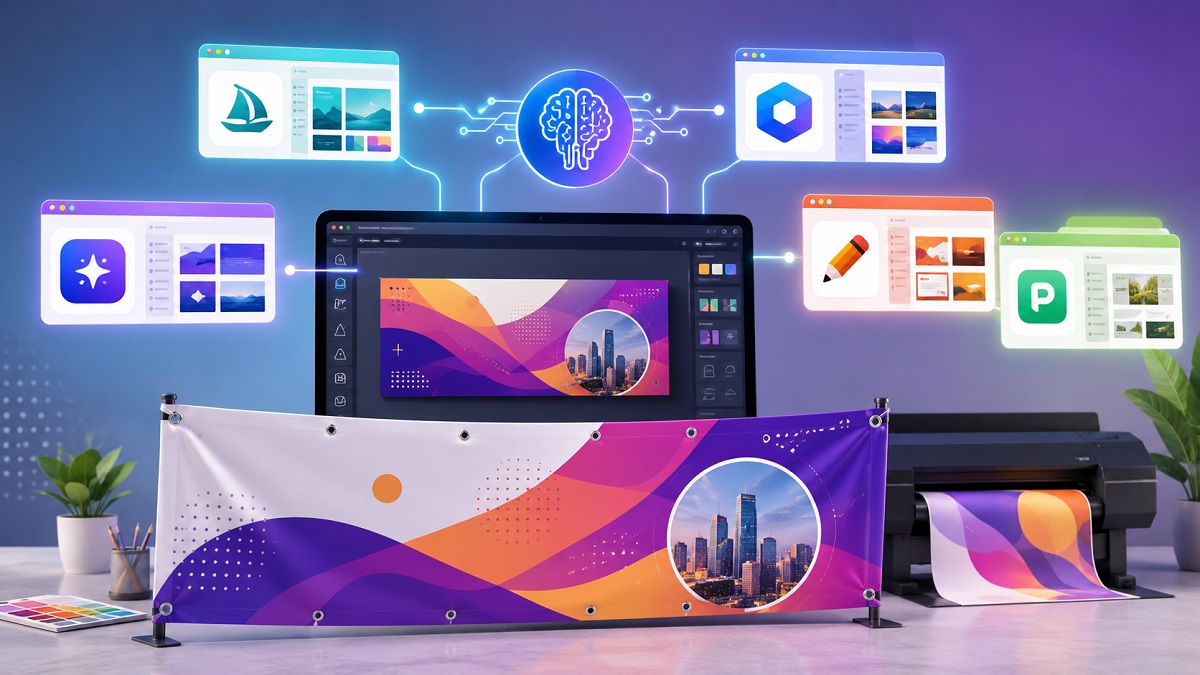
Digital advertising is the next big thing. However, print banners still remain one of the most impactful ways to promote shows, events, retail openings, trade shows, and local get-togethers. If you design your banner with strategy, you can communicate key information at first glance and improve your brand’s overall recognizability.
In this blog post, we’ll go over the top 5 platforms for designing print banners. We’ll evaluate how well they can generate banner layouts, pricing, AI features, templates, and more. Follow along for tips and tricks on efficient graphic designing.
1. Adobe Express
Overview
Adobe Express offers the best of both worlds: professional design features and an accessible user interface. This platform is Adobe’s solution to simplified, user-friendly, and on-the-go editing. This tool’s AI features are abundant and offer a native integration with Firefly AI for commercially-safe banner artwork generation.
Similarly, if you’re already an Adobe user, you can access editing features from other softwares such as Photoshop and Illustrator.
Key AI Features
- Generative fill: Add or replace objects.
- Text-to-image: Generate HD photos from a text prompt.
- Resize tool: Change the dimensions of your canvas to fit other social media formats.
- Background remover: Isolate your subject from the background.
- Clip maker: Turn long-form footage into key clips and highlights.
Pricing
- Free tier
- Premium: $9.99/month per user
Pros and Cons
|
Pros |
Cons |
| ✅ Powerful AI features | ❌ Premium features require a paid plan |
| ✅ Professional and minimalistic templates | ❌ Slight learning curve for complete beginners |
| ✅ Access to Adobe stock library and other professional softwares | |
| ✅ Tools available for branding |
2. VistaCreate
Overview
If you don’t have any prior knowledge of graphic design, VistaCreate is the tool for you. Formerly known as Crello, this platform offers its users a frictionless interface with thousands of pre-made templates for banners, posters, social media ads and posts, and other marketing materials. It also has a native integration with VistaPrint for any print-on-demand services.
Key AI Features
- Text-to-image: Generate HD photos from a text prompt.
- Object remover: Remove objects which clutter or overwhelm the design.
- Background remover: Isolate your subject from the background.
- AI writer: Draft text copies such as headlines, taglines, and captions.
Pricing
- Free tier
- Pro: $13/month
Pros and Cons
|
Pros |
Cons |
| ✅ Easy-to-use web interface | ❌ Fewer AI features than other tools on this list |
| ✅ Template library with a large variety of themes and formats | ❌ Customization options are limited |
| ✅ Affordable pricing for smaller businesses | |
| ✅ Features for brand management |
3. Visme
Overview
Visme’s primary usage is turning data-heavy spreadsheets into infographics. For professional business use, this tool is your best bet. However, it’s not very efficient for creating print banners. If you regularly create documents, presentations, and flyers, you can use this tool’s expansive AI suite to automate your daily tasks.
Key AI Features
- Presentation maker: Create editable slide decks based on a text prompt.
- Document generator: Create structured documents like reports and proposals.
- Infographic maker: Turn complex numbers into multi-section infographic charts.
- Social media graphic generator: Create platform-specific banners and posts.
- Text-to-image: Generate artwork, photos, illustrations, and patterns from a text prompt.
Pricing
- Free tier
- Starter: $29/month
- Pro: $59/month
- Enterprise: Custom pricing
Pros and Cons
|
Pros |
Cons |
| ✅ Strong AI features | ❌ Focused on business communication, not print banners |
| ✅ Branding controls | ❌ Smaller template collection compared to other tools on this list |
| ✅ Good collaboration features | |
| ✅ Useful for informational banners |
4. Canva
Overview
Canva is an industry leader when it comes to general-purpose design templates. It offers users the ability to manipulate many different formats including print banners, posters, flyers, presentations, social media ads and posts, and headers. This platform’s AI suite is built keeping beginners in mind and gives users plenty of starting points into quick designing.
Key AI Features
- Magic layers: Mulit-layered and editable vector components generated by AI.
- Photo editor: Isolates elements using depth detection.
- Magic expand: Expanding pre-existing images and extending backgrounds.
- Magic edit: Replaces or swaps items in images via text prompts.
- Magic write: Draft text copies such as headlines, taglines, and captions.
Pricing
- Free tier
- Canva Pro: $12.99/month
- Canva Teams: $14.99/month
- Canva Enterprise: Custom pricing
Pros and Cons
|
Pros |
Cons |
| ✅ Very large, relevant, and niche-specific template selection | ❌ Premium assets require a paid plan |
| ✅ Powerful, easy-to-use, and convenient AI features | ❌ Popular templates can look generic |
| ✅ Beginner-friendly | ❌ Unique templates are often for Premium users |
| ✅ Excellent team collaboration features that enable members to edit and share a design in real-time |
5. PosterMyWall
Overview
PosterMyWall is an all-in-one marketing powerhouse. You can do your design-related tasks, such as print banner creation, and your promotional tasks, such as email campaigns, all from within one editor. It offers users thousands of print banner templates to choose from. Additionally, this platform covers all print-on-demand needs as well.
Key AI Features
- AI redesign: Change elements in pre-existing templates through text prompts.
- Text-to-image: Graphic generation engine that creates unique artwork.
- Text-to-video: Create local b-roll or digital signage videos.
- Background remover: Isolate your subject from the background.
- AI writer: Draft text copies such as headlines, taglines, and captions.
- AI voiceover: Generate human-like speaking files onto video content.
Pricing
- Free tier
- Premium: $9.95/month
- Premium Plus: $29.95/month
Pros and Cons
|
Pros |
Cons |
| ✅ Large variety of print banner templates | ❌ Advanced features may require users to upgrade to a paid plan |
| ✅ Strong AI suite | |
| ✅ Built-in marketing tools (content scheduler, email campaign manager, and landing page creator) | |
| ✅ Resize tool for multi-format banners | |
| ✅ Beginner-friendly |
4 Tips to Create an Effective Print Banner
A print banner only has a few seconds to capture the viewers’ attention. To make it visually appealing, readable, and comprehensible, follow this simple guide.
1. Clear Headline
A headline is the first thing viewers’ eyes go to. It should quickly communicate the message of your print banner without confusing the viewers. Effective banners are:
- Short and direct
- Can be read from a distance
- Benefit-focused
If your headline isn’t understood within seconds, change it.
2. Readability
People would most likely view your banner from several feet away so readability is quite important to its success. Here are some best practices to keep in mind:
- Use large, bold fonts
- Use an easy-to-read font (simple typefaces)
- Create contrast between the text and background
- Limit the amount of text on the banner
If you overcrowd or clutter your print banner with a lot of text, your message gets lost.
3. HD Visuals
Images reinforce your message visually. If your images are pixelated or blurry, it might distract viewers from the message of your banner or make it look unprofessional. Pick images which are:
- High-resolution, preferably 4k
- Relevant to your offer
- Professionally edited
- Consistent with branding on other social media platforms
You can use royalty-free stock images or AI text-to-image generators for unique, custom, and relevant artwork.
4. Visual Hierarchy
There should be a structure to the elements on your banner. It should naturally guide the viewer’s eye to the most important information first. Here’s what a typical structure looks like:
- Headline
- Main image
- Supporting information
- Call-to-action
- Contact details, event information
By using this hierarchy, information is easy to absorb and act upon for the viewers.


